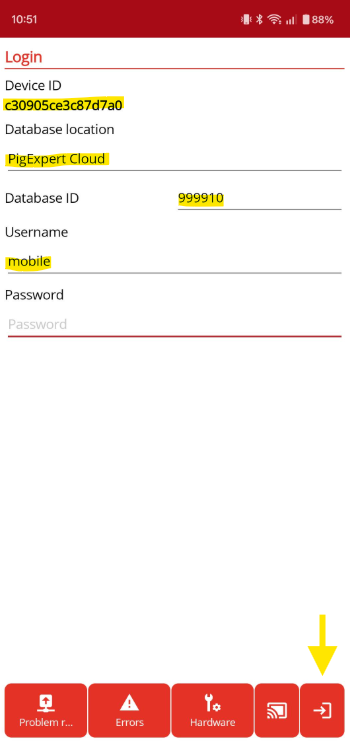
After installing the PigExpert App, you must log in to the database.
To do this, use the following settings:
Database location:
Select PigExpert Cloud
Database ID:
The ID of your database. This is provided by AgroVision.
Username:
This is not the username and password you use to log in on the PC.
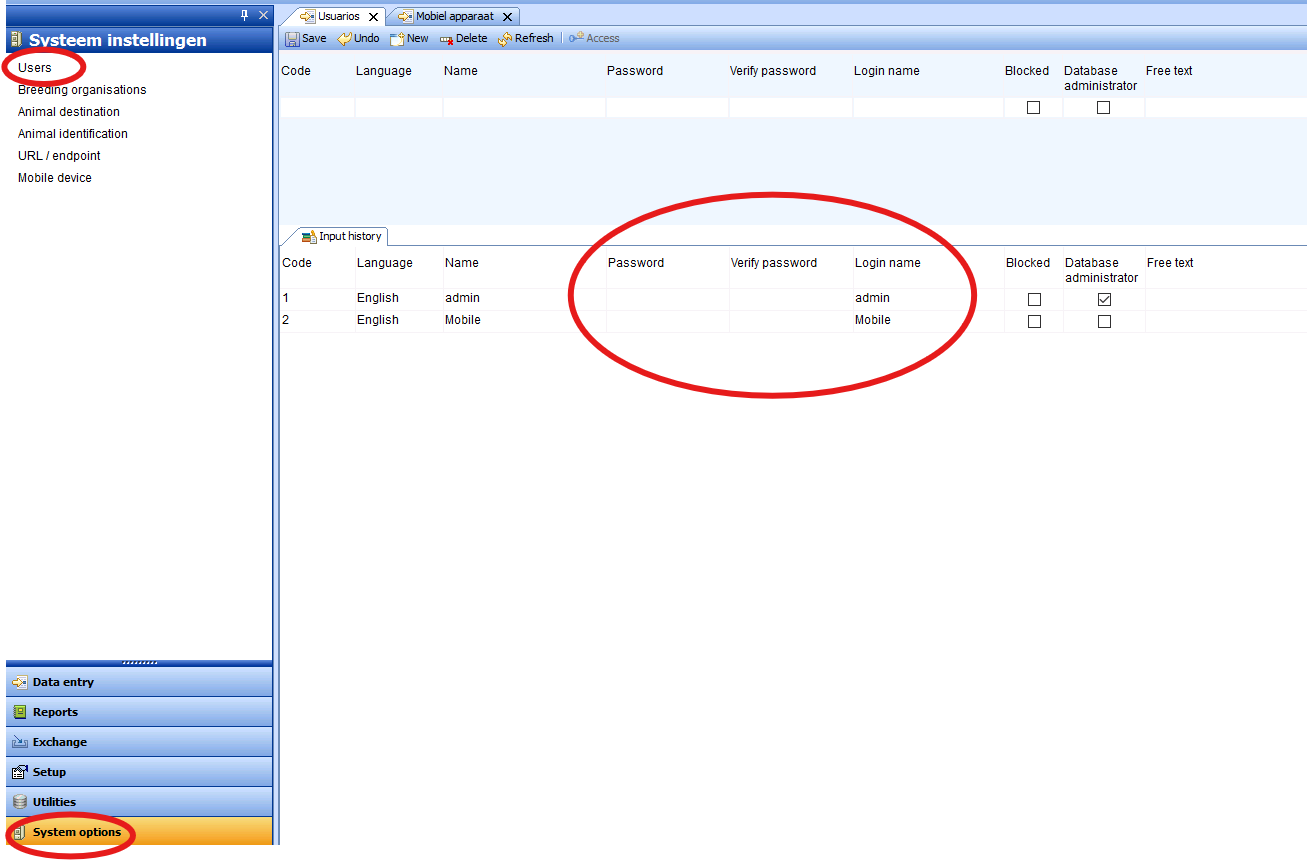
To view and/or edit available users, go to PigExpert on the PC: System Settings -> Users
Here you will find the users with their corresponding usernames and passwords.
Password:
If a password has been set, you must enter it.
To check if a password has been set and/or to change it, go to PigExpert on the PC: System Settings -> Users
Next, click the login button at the bottom right.
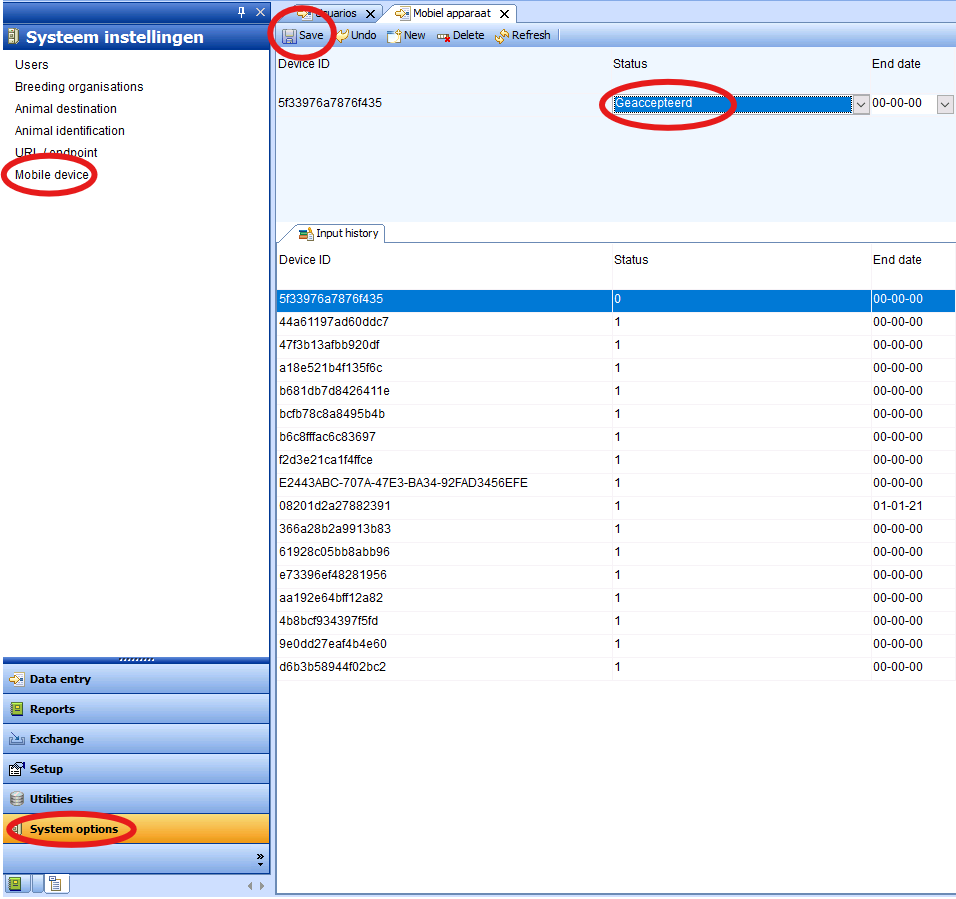
Accept device:
After logging in for the first time, the device must be accepted in the database.
To do this, go to System Settings -> Mobile Device.
Find the device that matches the Device ID visible in the app.
Change the device’s status to Accepted and click Save.
Now log in to the app again.