Exporting Reports
To export reports from PigExpert, follow these steps:
- Right-click on the report name.
- Select Export from the context menu.
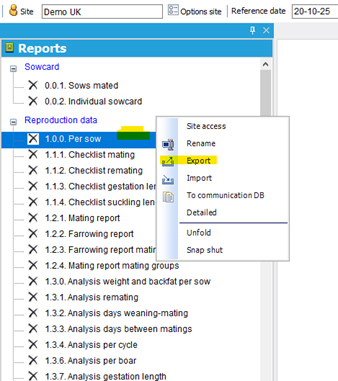
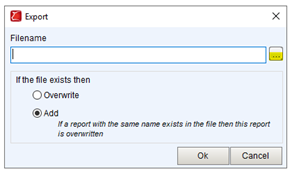
- In the popup window:
- Click on the three dots.
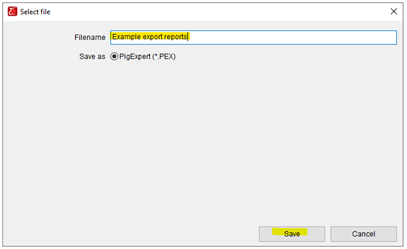
- Enter a name for the file and click on Save
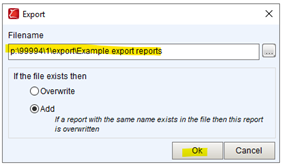
- Click on the three dots.
- If you want to export multiple reports, you can add them after the first one without entering a new name.
- Once all reports are selected for export:
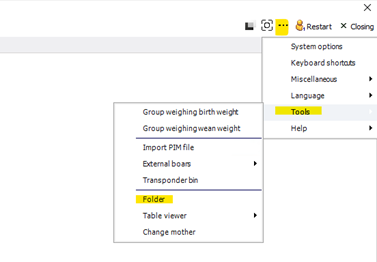
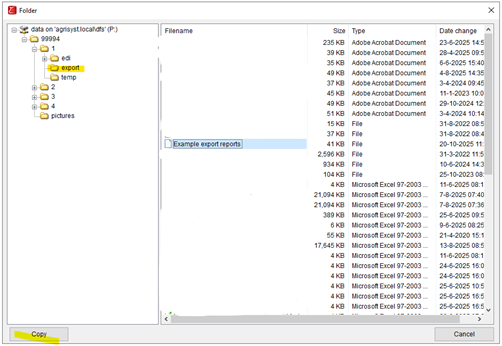
- Navigate to the three dots next to restart > Tools > Folder > Export > Filename
- Click on copy to download the exported reports.
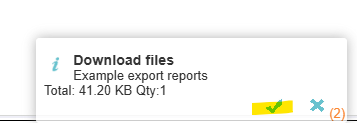
- Download them using the popup window.
- Navigate to the three dots next to restart > Tools > Folder > Export > Filename
_______________________________________________
Importing Reports
To import reports into PigExpert follow the steps below:
- Log in with the account to which the reports should be linked.
- In the Reports section:
- Right-click and select Import.
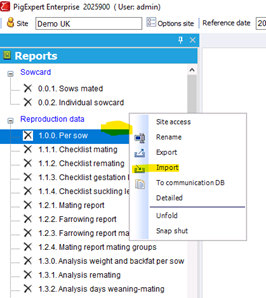
- Right-click and select Import.
- Drag the report file from your computer into PigExpert.
- The screen will turn yellow to indicate readiness.
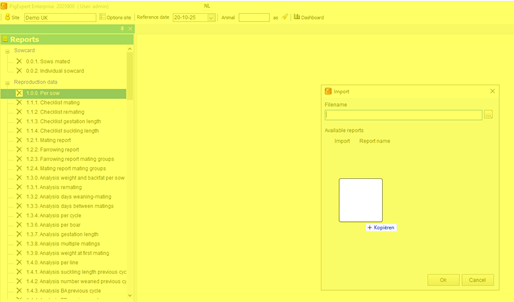
- The screen will turn yellow to indicate readiness.
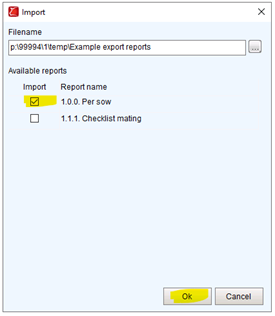
- A list will appear:
- Check the reports you want to import.
- Click on OK to finish importing the reports