
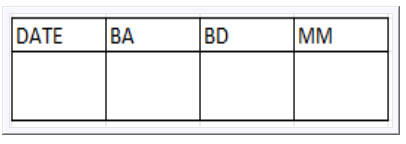
It is possible to display a custom image on the sow card, for example a table for easy data writing.
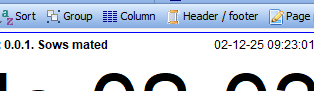
Click on Header/Footer in the toolbar to open the settings window.
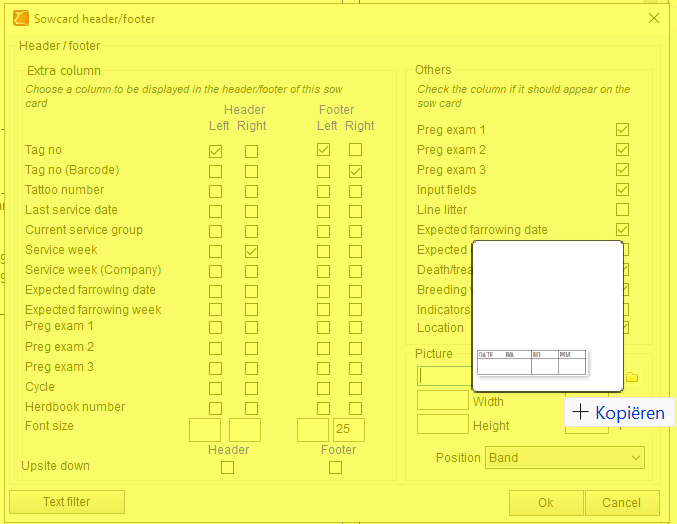
In the pop-up window that opens, drag the image from your own PC to the white bar below Picture
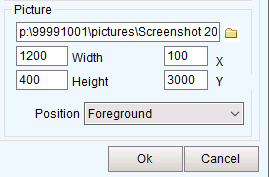
The file will be uploaded. Then enter the width and height of the image and the X and Y location.
Use Position to indicate whether the image will appear in front of or behind the text.
For example, enter the following value.
Each field must be filled in to display the image.
Click OK to save.
If the position or size of the image is not to your liking, you can move it directly on the sow card.
To do so, click on Picture in the toolbar.
The image can now be selected and moved on the sow card. Or reduced and enlarged by dragging the image at the edge.
If you want to make more changes to the sow card, see: Change layout of the sowcard
Don't forget to save changes to the sow card by clicking Save or Save As in the toolbar.