
There are various sections on a sow card that can be modified.
This manual explains how you can display animal data or not, and where on the sow card.
To adjust the cycle data on the sow card, see: Sow card: Adjusting cycle data
To add an image to a sow card, see: Sow card: Add your own image
Header and Footer information:
Click on Header/Footer in the toolbar to open the settings window.
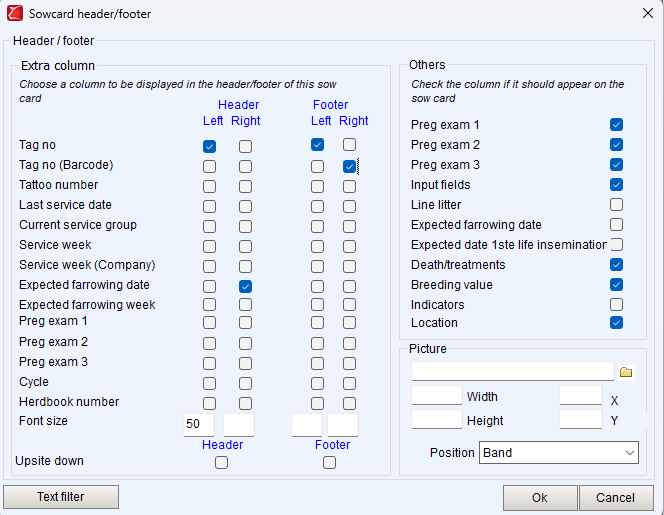
In the left-hand section of the screen, you can specify which information will appear in the header and footer of the sow card. This is the information printed in the largest font. You can choose two pieces of information for the header (left and right) and two pieces of information for the footer (left and right).
The Font size can be used to enlarge or reduce the data. (For example, enter 50 to reduce the data by approximately half.)
If necessary, rotate the header or footer so that the data is displayed upside down. (Upsite down)
Others:
Here you can indicate which information should or should not be displayed on the sow card. This information has a standard location on the sow card.
Advanced settings:
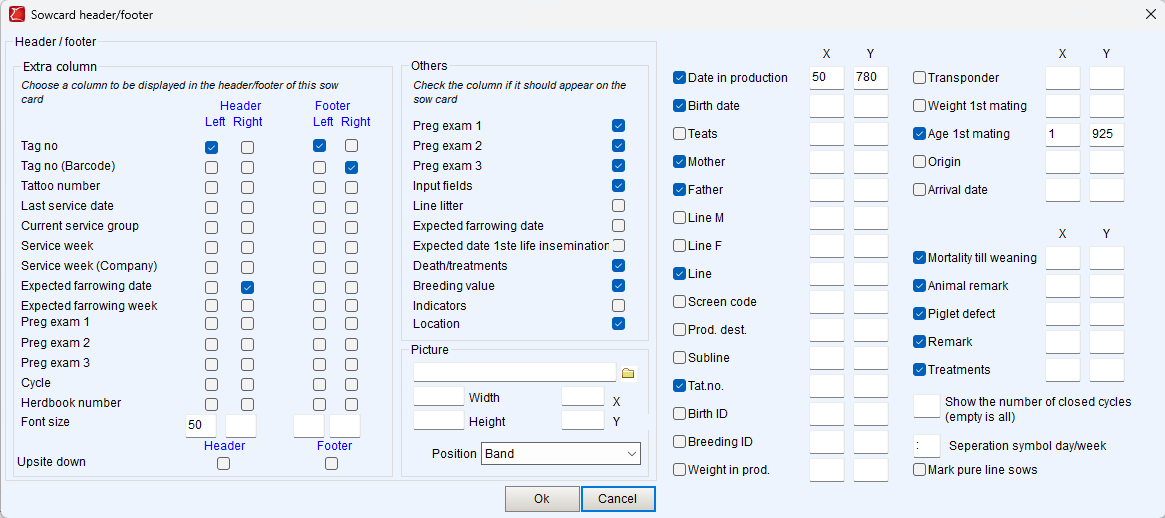
If you click on the Text filter at the bottom left, you can add extra fields and move them around on the sow card if necessary.
The available values can be checked or unchecked.
In the X and Y fields, you can indicate where on the sow card the value will be placed.
Most values have a default location, but it is possible that multiple values have the same default location and therefore need to be moved.
For reference: X 50 & Y 780 is the location for the top left of the information bar directly below the pregnancy check date.
To prevent a sow card from being printed on multiple pages or information appearing behind the image on the sow card, it is possible to display only the last X cycles on the sow card. You can specify this number in the field: Show the number of closed cycles
Don't forget to save changes to the sow card by clicking Save or Save As in the toolbar.