Download files
It is possible to download various files from PigExpert cloud to your own PC.
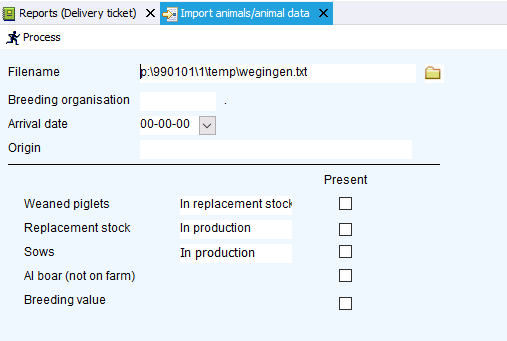
Once you have generated an overview, you will find the “Export” button at the top of the toolbar.
Clicking this button opens a pop-up window where you can enter the name you want to give the file. You can also select the export format. Click Save to create the file.
In some cases, it is also possible to export te file to use to import into other databases or programs.
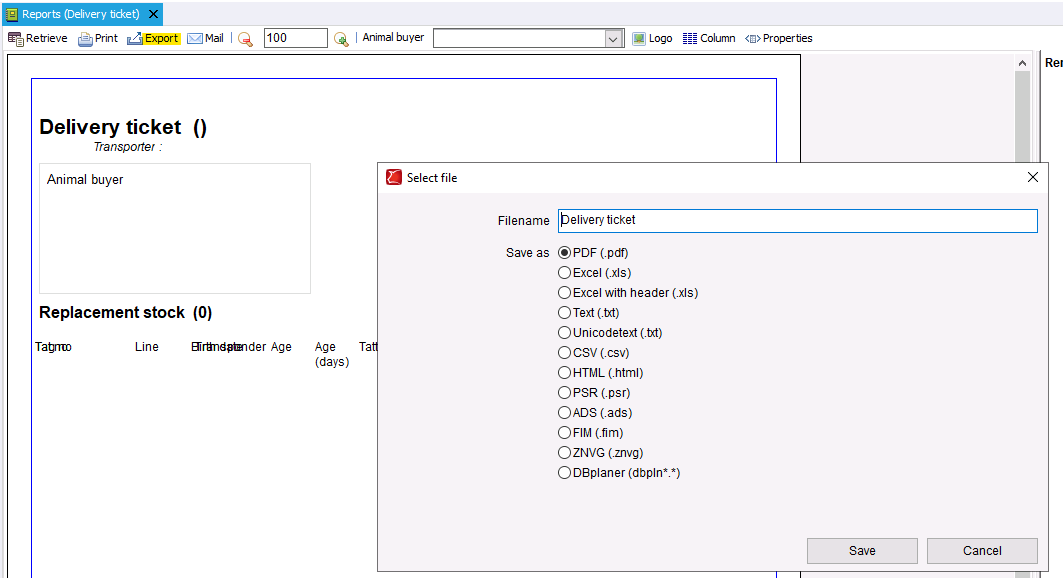
After creating the file, a pop-up will appear at the bottom right of your screen.
Click on the check mark to start downloading the file to your PC.
Uploading files
In various places in PigExpert, it is possible to upload local files from your PC to the PigExpert server.
This can be done in places where you see the Filename line.

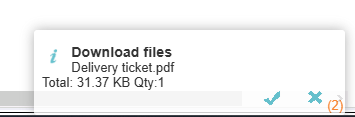
To upload a file to the server, drag it from your local PC folder to PigExpert where you want to upload the file. The screen will then turn yellow. You can drop the file in the white line under File name.
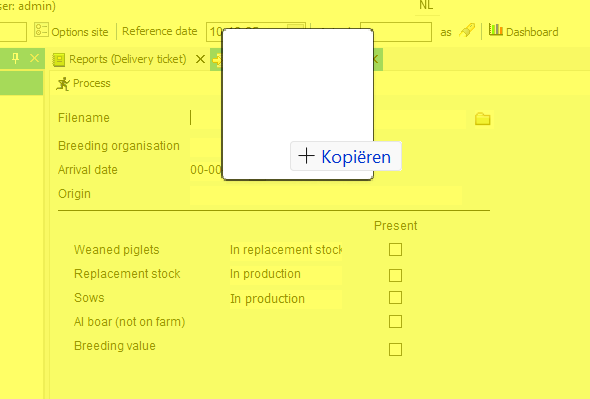
After releasing, you will see the file name appear in the line. The file has then been successfully uploaded.