
This manual describes how animals can be imported into PigExpert from an ADS or FIM file.
1. Save file to computer
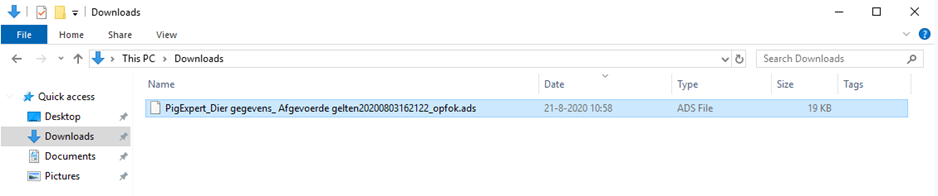
Save the file from the email or the medium on which it was received to your computer's file explorer. In this example, it is saved in the Downloads folder.
2. Importing into PigExpert
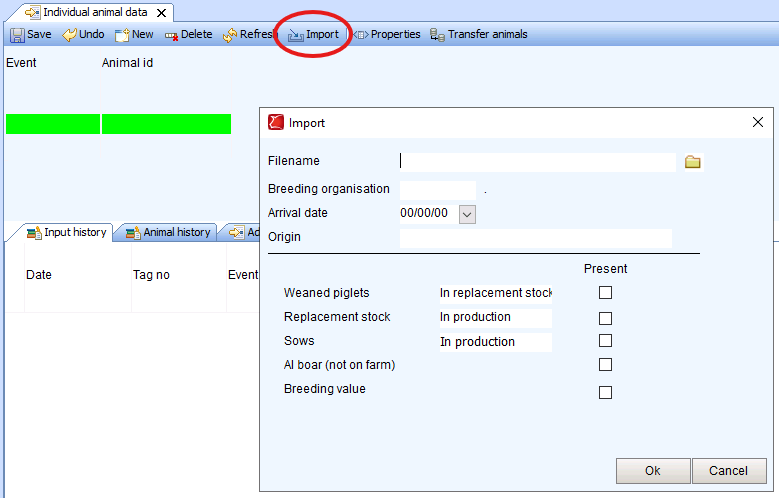
- Open PigExpert and go to Individual animal data
- Click on Import in the toolbar.
- Drag the file from Explorer (in this case, the Downloads folder) to the File name field. If this works, a reference to the file will appear here. Please note: this can sometimes take a few seconds, but not half a minute.
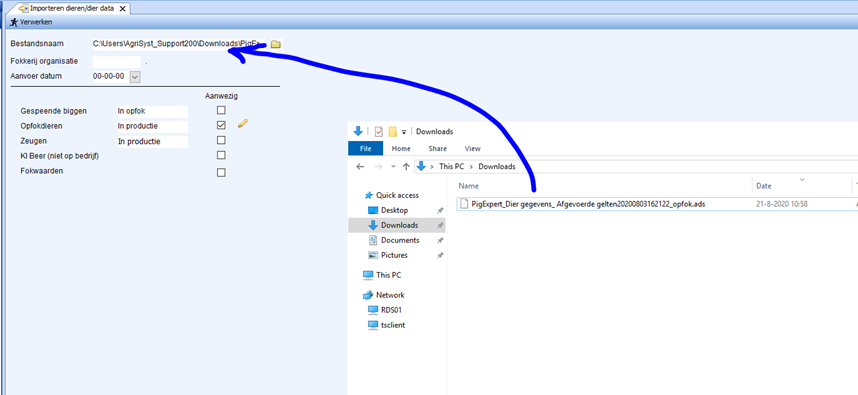
- PigExpert then automatically checks the animal category that is present in the file; you should NOT change anything here. In this case, this is replacement stock. Behind this is the production stage at which the animals are being read in: Weaners, In replacement stock, or In production. In this case, this is In production, but you can change this by clicking on it.
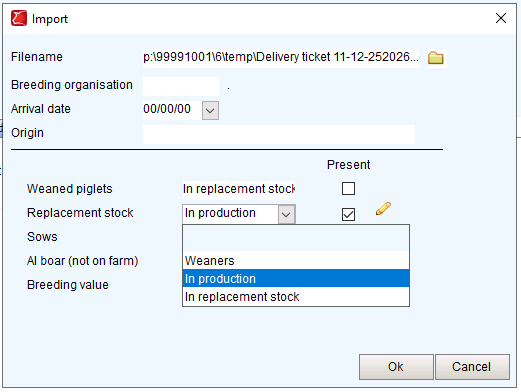
- After changing, it will look like this:
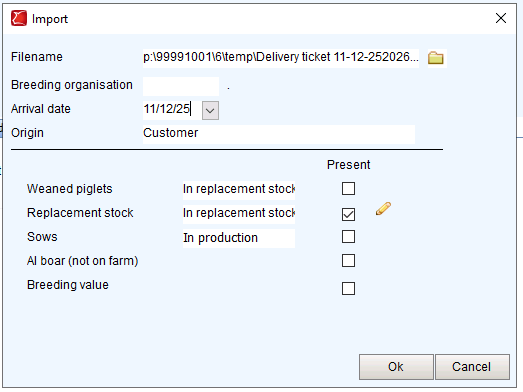
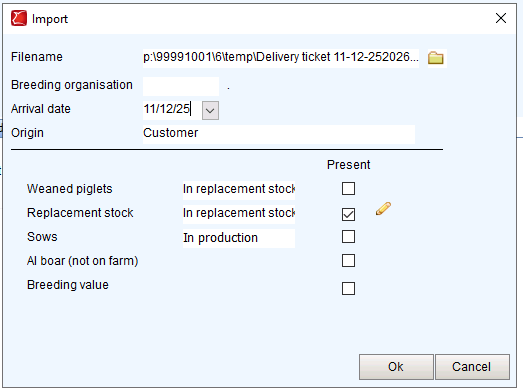
- Then enter a Delivery date and, if necessary, a Breeding organization and origin farm. Click on Process or OK:
- PigExpert will then read the file. Once PigExpert has finished, the following message will appear if everything went well:
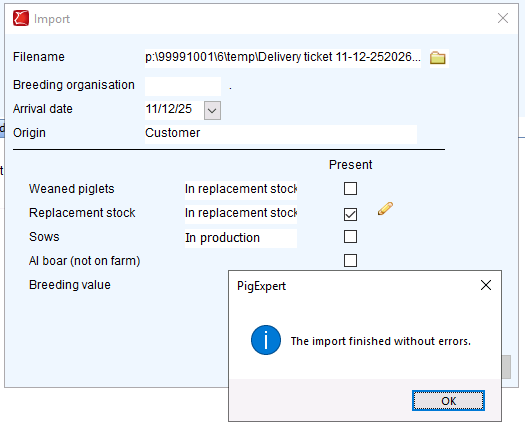
- If any errors occur, please call the support desk.
If everything went well, click OK and close the Import animals/animal data tab.
3. Renumbering animals after import
After importing the animals into PigExpert, it may be necessary to change the animal numbers.
If you want to do this, follow the manual: Renumber animals from overview