Keyboard shortcuts can help to make data entry quicker and easier when using the desktop version of PigExpert.
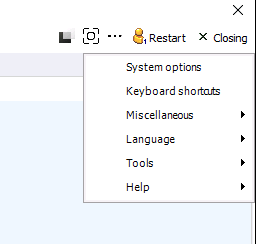
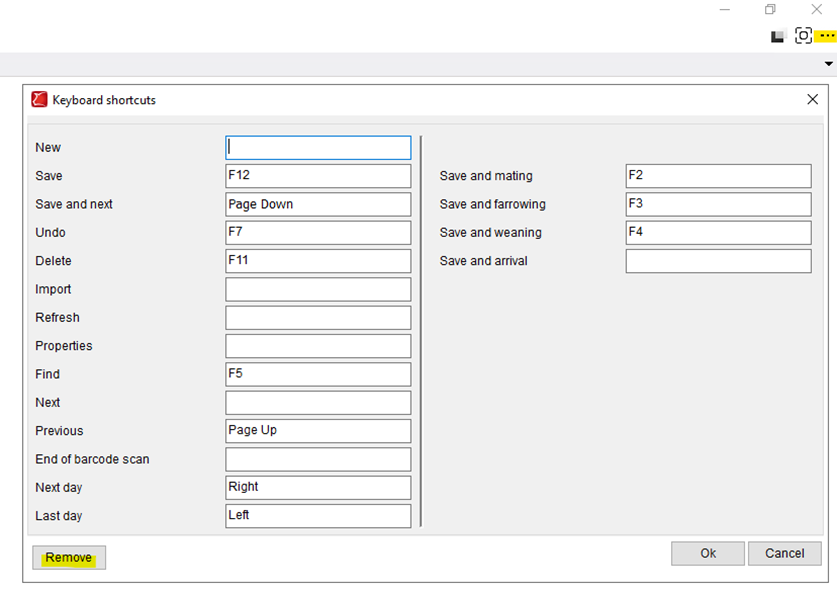
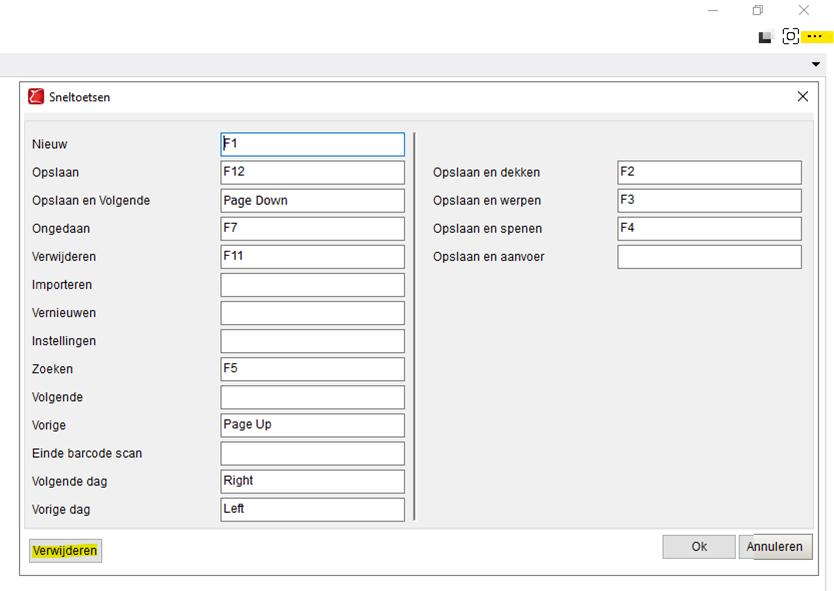
To set up keyboard shortcuts, click on the 3 dots in the top right corner. Next, click on “Keyboard shortcuts”. The actions that can be performed with a keyboard shortcut are shown in the popup. To set a key as a keyboard shortcut, select the field behind the description and press the key you want to use as a shortcut. The pressed key will now appear in the field behind the description.
To check which keyboard shortcuts are currently in use, you can open the same screen and simply look for the key described on your keyboard.
To change the keyboard shortcut, select the field behind the description (with the current shortcut in it) and press the key on your keyboard you would like to use instead. This key will now appear in the field behind the description.
To completely delete a keyboard shortcut, click on the field behind the description and click on the button “Remove” on the screen. The field behind the description will be emptied and the action described will no longer be available as a shortcut.
To save any changes made, click on “Ok”.