
Below is a description for each operator. You could also have a look at some of the reports that are available in PigExpert to get a better understanding of the operators based on the data that is retrieved in the reports.
To get available reports into your own database, see: Adding pre-made reports
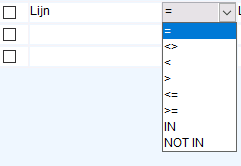
=
The data (column) you want to retrieve has to be an exact match for the selected value, e.g. Tag No = 1 will only show data for the animal that has tag no 1.
<>
The data (column) you want to retrieve may not match the selected value, e.g. Tag No <> 1 will show all data except data for the animal that has tag no 1.
<
The data (column) you want to retrieve should be smaller than the selected value, e.g. cycle < 5 will show you data for all animals in cycle 1, 2, 3 and 4.
>
The data (column) you want to retrieve should be greater than the selected value, e.g. cycle > 5 will show you data for all animals in cycle 6, 7 and up.
<=
The data (column) you want to retrieve should be smaller than or equal to the selected value, e.g. cycle <= 5 will show you data for all animals in cycle 1, 2, 3, 4 and 5.
> =
The data (column) you want to retrieve should be greater than or equal to the selected value, e.g. cycle >= 5 will show you data for all animals in cycle 5, 6, 7 and up.
IN
The data (column) you want to retrieve should be included in the value, it is similar to =, but multiple values (delimited by a comma) can be specified. E.g. tag no IN 1,2 will show data for both animals 1 and 2.
NOT IN
The data (column) you want to retrieve may not be included in the value, it is similar to <>, but multiple values (delimited by a comma) can be specified. E.g. tag no IN 1,2 will show data for all animals except for 1 and 2.
Don't forget to save changes to an overview by clicking Save or Save As in the toolbar.